Showing posts sorted by relevance for query photoshop high pass filter. Sort by date Show all posts

Thursday, November 20, 2008

High Pass filter - Sharpen Image

I have posted a tutorials on use of the High Pass filter in Photoshop here. This filter can be used to sharpen images. You can use this filter to correct dull mobile phone pictures and make them crisp. This tutorial is an improvement on the one I posted earlier.
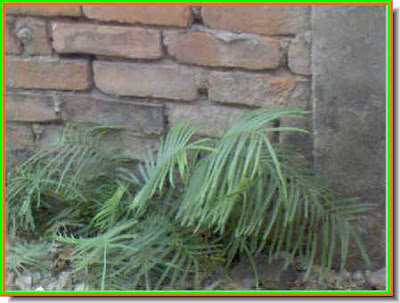
Step 1 : I will use this photo I took with my mobile phone for this tutorial. You can see that the colors are dull and details are not sharp.
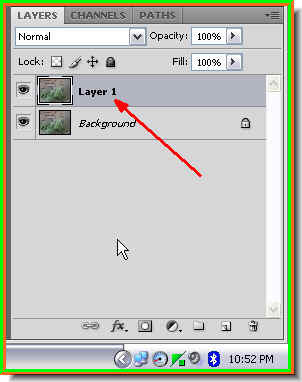
Step 2 : Look in the Layers pallette. There is only a single layer -- Background. Press CTRL+J to duplicate the Background. A new layer -- Layer 1 forms.

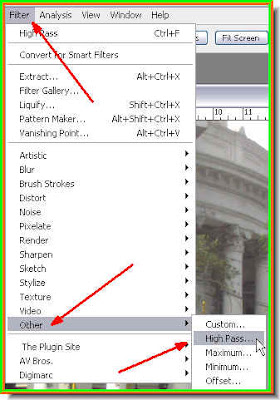
Step 3 : Go to Filter>Other>High Pass.
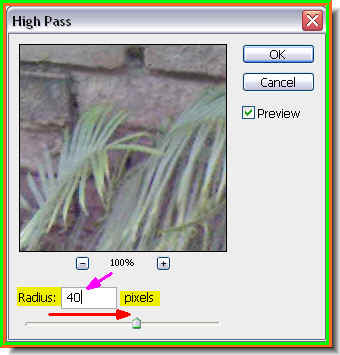
Step 4 : The High Pass filter dialogue opens. Drag the Radius slider to something really high such as 40 pixels or thereabouts as I have done. Click ok.

Step 5 : This is how the image looks. Even blurrier than when I started out.
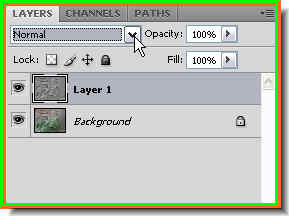
Step 6 : In the Layers pallette click where the arrow points to, to change the Blend Mode.
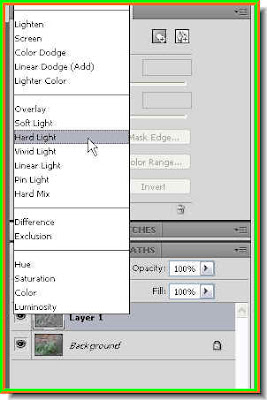
Step 7 : From the popup menu click on Hard Light.

Step 8 : The image looks clearer. Definitely an improvement on the one I started out with.
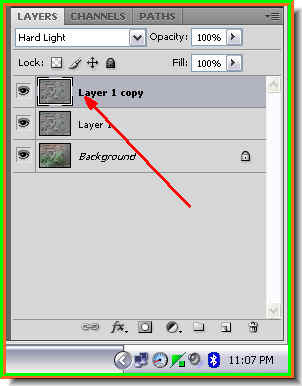
Step 9 : Press CTRL+J on the keyboard again and Layer 1 will be copied into a new layer -- Layer 1 copy.
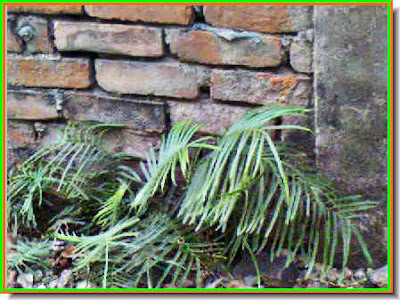
Step 10 : Look at the image now. It looks sharp and bright. That is all there is to it. It can be done in any version of Photoshop.

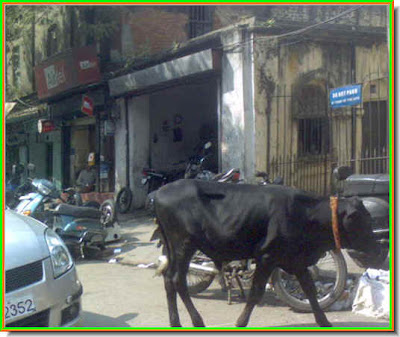
Sunday, December 21, 2008

High Pass Filter - Advanced

The High Pass filter can be used to sharpen details in a photo, especially those taken with mobile phone cameras. The point of this tutotiarl is show the settings and what degree to apply the filter.

The original photo at the top and the sharpened one below. Look at the car number plates and you will notice the difference.

The original photo is at the top and the sharpened one at the bottom.

The photoshop tutorial is here.

Other photoshop tutorials are here.

Monday, September 22, 2008

Sharpen Images in a Jiffy

With many of us using mobile phone cameras these days take photos, at times the pictures may not turn out to our satisfaction. You cannot expect great photos with mobile phone cameras. But you can do a lot to improve them in Photoshop. One common problem is that mobile phone cameras tend to blur details. This can be corrected to a great extent in Photoshop in a few simple steps. It can be done in any version of Photoshop.

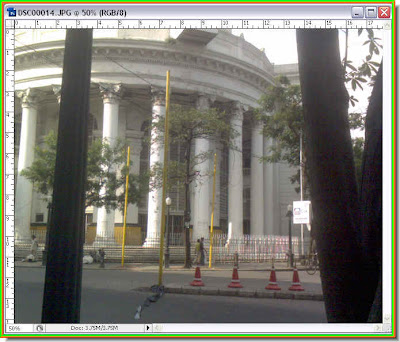
I took this photo of the General Post Office in Kolkata in Dalhousie Square, which is a landmark with my mobile phone. You can see that the photo is not one to brag about.

Step 1 : Press CTRL+J on the keyboard. This will duplicate the Background layer as Layer 1.

Step 2 : Go to Filter>Other>High Pass

Step 3 : The High Pass filter dialogue box opens. This is the filter which will sharpen our image. When you are are using a small image or using one for the web (500 px X 500 px) let the Radius remain at between 1.1 to 1.3 pixels. For larger images you can try a larger Radius. You can see the sharpen taking effect in the dialogue window even though everything appears grey. I have used a Radius of 12.0 pixels since the image I have is large.

Step 4 : Now change the Blend Mode to Overlay in the Layers pallette and you are done.

The sharpened image. That is all. Try it out.

Thursday, February 17, 2011

Sharpening images with Surface Blur

An easy way to sharpen an image is to use the High Pass filter in Photohshop. A better method is to use Surface Blur, though it sounds contradictory for sharpening.
This is a close up of a free stock image.
The same image after sharpening.
The tutorial is here
Other photoshop tutorials are here