Photoshop Gradients can be used in different ways. There are a number of them -- Linear, Radial, Angle, Reflected and Diamond Gradients. You can use them to make backgrounds or create special effects as shown in the photo at the bottom.
Saturday, March 22, 2008


Monday, March 17, 2008
Harry's Filter Photoshop
One of the best free Photoshop filters is Harrys Filter. Click here to download. You will have to register with your email before you can download. But it is totally free. Download it to a folder in your computer. Let me show how to install it.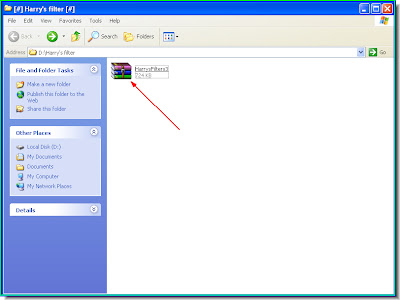
Step 1 : I have downloaded it to a folder on my computer.
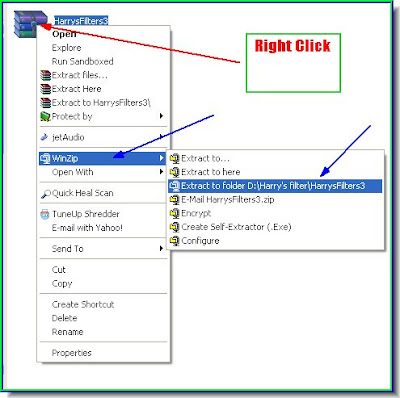
Step 2 : Right click the file. It is in a zip file. You can use Winzip or Winrar to open the file.Then go to Extract to folder. Step 3 : The file has been extracted. Click the folder.

Step 4 : As soon as click the folder this exe file will be seen.
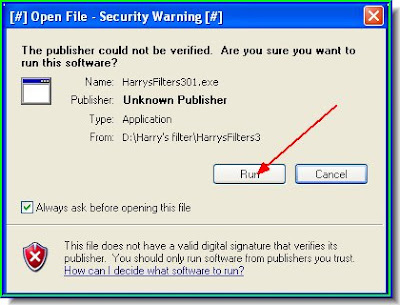
Step 5 : This dialogue opens. Click run.
Step 6 : This pops up next. Click ok.
Step 7 : This now fills your screen. Click Next.
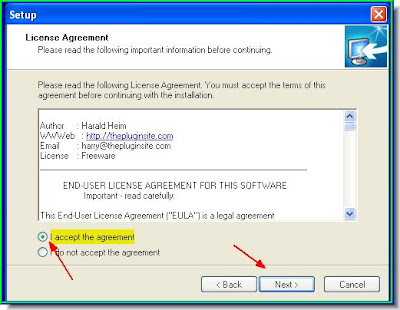
Step 8 : Check the I accept the agreement, then click next.
Step 9 : When this dialogue opens, click Browse.
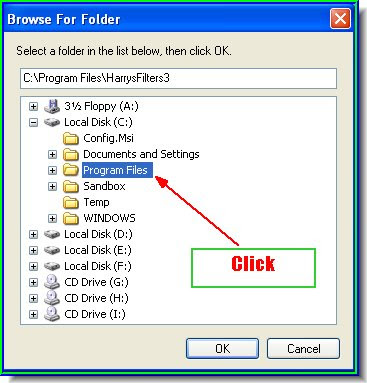
Step 10 : When you click Browse, this window will open. Double click Programme Files. Step 11 : Clicking on Programme Files will reveal Adobe under which Photoshop is installed. I have Photoshop CS 2. For Photoshop 7 the steps are same.
 Step 12 : Click on Photoshop (red arow) to reveal Plug-Ins (blue arrow). Click it.

Step 13 : Click Plug-Ins and then click ok.

Step 14 : Click Next.
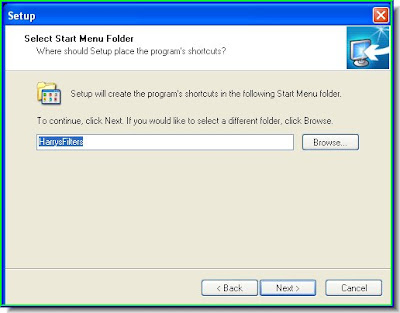
Step 15 : Click Next. Step 16 : Click Install. And the software will be installed.
 Step 17 : Open an image in Photoshop. Go to Filter>The Plugin Site>Harry's Filter for applying it.
 Step 18 : This dialogue box opens. In the Group marked with a Red Arrow is a set of filters you can apply.

Step 19 : Click FX for some more effects. This is an image I have opened in Photoshop.

The same image with Harry's Filter applied.

Sunday, March 16, 2008
Brushes in Photoshop. Download Brushes
You can download free Photoshop brushes from here.
You can download these speaker shaped brushes here.

You can download these Vector Circle brushes here. This heart shaped vector brush can be downloaded here.
 This is a fantastic brush to add 'cracks' to your work in photoshop. It can be downloaded here.
 The footprints brush can be downloaded here.
 These guitar shaped brushes can be downloaded here.
 These vector circle brushes can be downloaded here.

You can download these stanp shaped brushes here.

You can download music notes brush from here. You can download this brush set here.

You can download this brush set here. There are many more brushes in 13 pages. Browse them and download and install the ones you want in Photoshop.

You can download this set of girls from here. You have to click on the image to download it from the link. You can download the gramophone brush from here.
 Step 1 : To install a brush Click on Save when the dialogue box appears.
 Step 2 : As soon as you click save, this dialogue box will appear asking you where you want to save it on your computer. It would be better if you create a folder called Photoshop brushes and save the winrar or winzip files in them. (You will need to have winrar installed. You can download winrar from here).
 Step 3 : When you click Save the brush will be saved to your predetermined folder.

Step 4 : When the download completes click Open Folder.

Step 5 : The winrar file has been saved to a folder. Step 6 : Right click the winrar file (red arrow) and click Extract Here (blue arrow).
 Step 7 : As soon as you click, this dialogue box opens. Click the C drive. The operating system (OS) is located there. Double click the C drive.

Step 8 : This will reveal the Programme Files. Now double click Programme Files.
 Step 9 : Now Adobe is revealed. Double click Adobe.
 Step 10 : Now Photoshop is revealed. I am using Photoshop CS 2. It is the same process for Photoshop 7. Double click Photoshop.
 Step 11 : Now Presets is revealed. Double click it.
 Step 12 : This reveals Brushes. Double click Brushes and click ok.

Step 13 : Since I have already installed this font and am showing how it is to be installed, this dialogue box has opens. Just click yes and the font will be installed. That is all. Try out the brushes.
Subscribe to:
Posts (Atom)